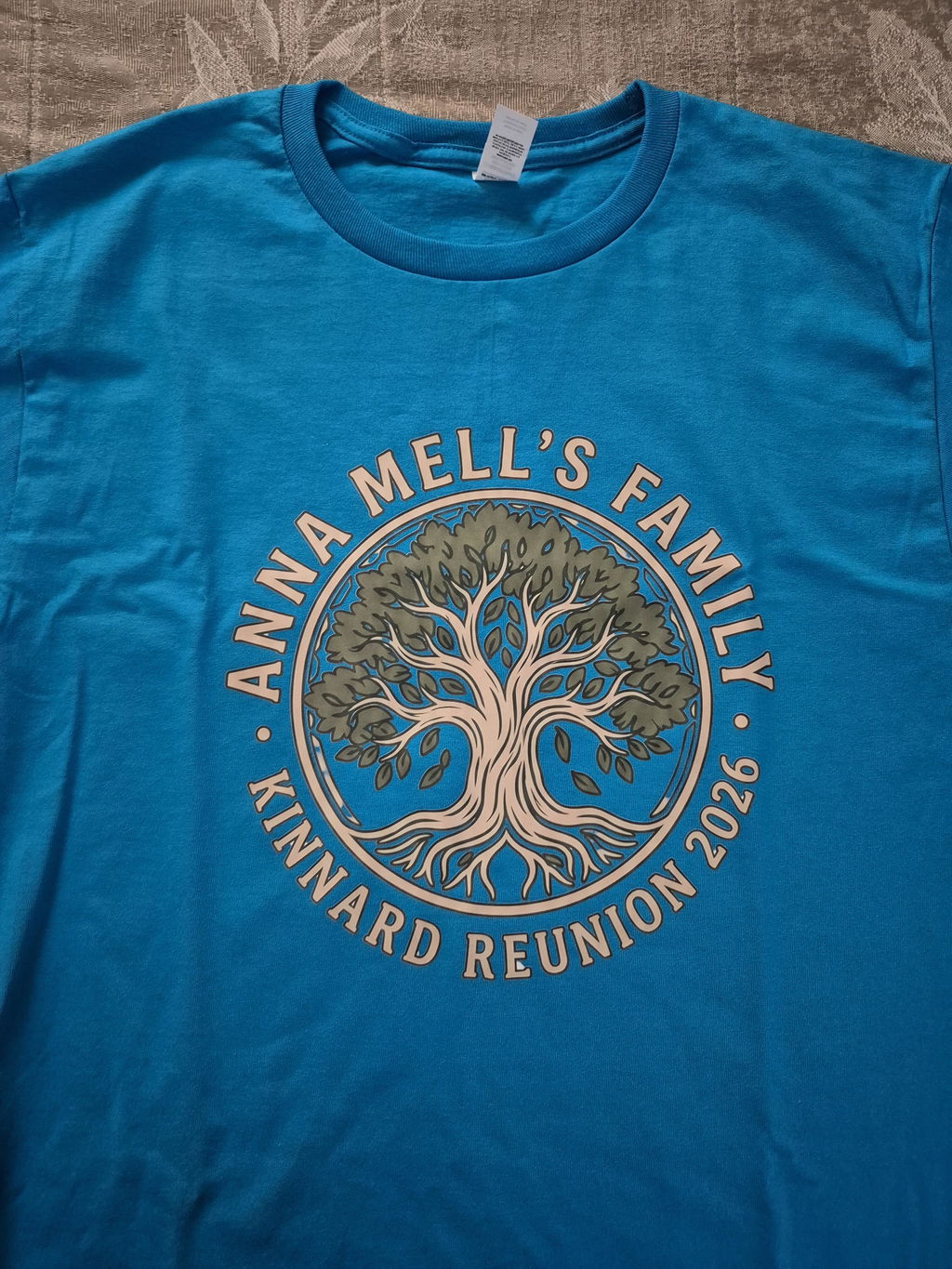
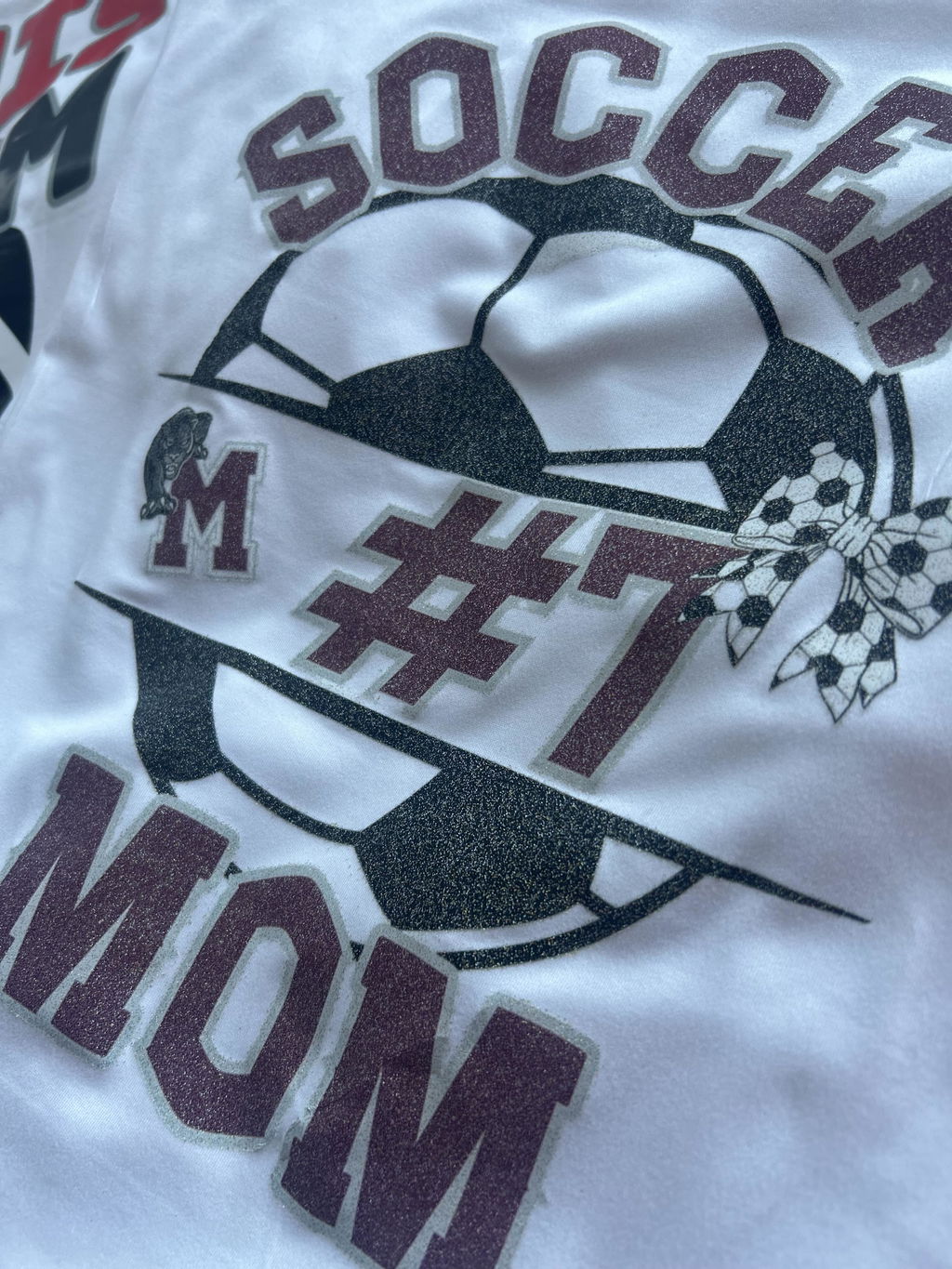
VIBRANT COLORS
•ORDER TODAY. PRINT TODAY. SHIP TODAY
•PREMIUM DTF TRANSFERS
•NO MINIMUMS
•FREE SHIPPING OVER $100
•
Learning How to Use a DTF Gang Sheet Builder can help apparel decorators organize multiple designs, reduce unused film space, and prepare custom transfers more efficiently. Instead of ordering every logo or graphic separately, the online tool allows you to upload, resize, duplicate, rotate, and arrange several designs on one print-ready sheet.
This guide covers the complete process, from artwork preparation and sheet-size selection to final layout review. You will also learn how to avoid common design mistakes, choose between different ordering methods, and prepare specialty glitter or glow-in-the-dark transfer layouts.

A DTF Gang Sheet Builder is an online design-layout tool used to place several graphics on a single direct-to-film sheet. It gives you control over the dimensions, quantity, orientation, and placement of each uploaded design.
The custom gang sheet builder from DTF Nash can be used for T-shirts, hoodies, uniforms, tote bags, team apparel, event merchandise, sleeve prints, neck labels, and branded clothing.
One sheet may contain a large front design, several chest logos, sleeve graphics, names, numbers, neck labels, and smaller customer artwork. This makes the layout method especially useful for mixed orders that require different transfer dimensions.
When should you build a custom gang sheet?
Artwork preparation is one of the most important stages of creating a professional transfer sheet. The online tool can help you position and resize graphics, but it cannot automatically repair every file-quality problem.
Remove the background unless it is intentionally part of the artwork. A white rectangle behind a logo may be printed when it remains inside the uploaded file.
Low-resolution graphics may look acceptable on a screen but appear blurry or pixelated after printing. Prepare each design at approximately 300 DPI at its intended print dimensions whenever possible.
Remove transparent margins around the artwork. Large empty areas can affect the displayed dimensions and prevent nearby designs from being positioned efficiently.
Review small text, narrow outlines, semi-transparent effects, distressed areas, soft shadows, and thin lines. Details that are too small may not reproduce clearly at the final print size.
Choose the sheet length according to the total number, dimensions, and quantities of the required transfers. List every design before selecting the final sheet size.
For example, an apparel order may require ten full-front graphics, ten chest logos, ten sleeve designs, and several neck labels. Calculate the approximate area required and include enough room between designs for accurate trimming.
Customers who already have a completed print-ready layout can use DTF Gang Sheet Upload and Print instead of arranging the artwork again inside the builder.

Each graphic should be sized for its intended garment placement. A full-front design normally requires different dimensions from a chest logo, sleeve print, youth graphic, or neck label.
Keep the aspect ratio locked when adjusting the width or height. Changing one dimension without preserving the original proportions may stretch or compress the artwork.
| Design Type | Main Consideration | Recommended Action |
|---|---|---|
| Full-front design | Garment size and printable area | Measure the garment before confirming the width. |
| Left-chest logo | Logo shape and shirt size | Keep the graphic compact and easy to position. |
| Sleeve print | Available sleeve width | Confirm that the artwork fits the printable area. |
| Neck label | Small text readability | Inspect all details at the final print size. |
| Youth design | Smaller garment proportions | Create a separate youth-sized version. |
Efficient placement is one of the main benefits of a DTF Gang Sheet Builder. Begin with the largest artwork and use the remaining spaces for smaller chest logos, sleeve prints, names, numbers, labels, and supporting graphics.
Rotate suitable designs when doing so creates a more efficient layout. Place compatible shapes near one another and avoid leaving large unused gaps.
Do not place graphics directly against each other. Leave sufficient cutting space so every transfer can be separated without damaging neighboring artwork.
Carefully inspect the final sheet because production is normally based on the submitted arrangement. Do not review only the largest design; zoom in and check every element.

A custom sheet is not required for every project. The most suitable ordering method depends on the number of graphics, transfer quantities, and the amount of layout control you need.
Use the builder when you want to arrange multiple designs or size variations on one sheet. Choose Custom DTF Transfers By Size when you want to upload one graphic and order individual transfers in a selected dimension.
| Ordering Method | Best For | Layout Responsibility |
|---|---|---|
| Online builder | Multiple designs, dimensions, or quantities | You arrange the graphics online. |
| Upload and print | Completed print-ready gang sheets | You upload one finished layout. |
| Transfers by size | Individual graphics and simple repeat orders | You select the required transfer dimensions. |
Standard transfers work well for many apparel projects, but specialty finishes can create a more distinctive result for events, merchandise, seasonal products, and branded collections.
For graphics that require a sparkle effect, explore the Glitter DTF Transfers collection. Multiple glitter designs can be arranged through the Glitter DTF Gang Sheet Builder .
Customers with a completed specialty layout can upload it through the Glitter DTF Gang Sheets product page.
For Halloween apparel, nighttime events, creative brand releases, and distinctive merchandise, browse the Glow in the Dark DTF Transfers collection.
The Glow in the Dark Gang Sheet Builder allows several glow designs to be arranged on one custom transfer sheet.

Print shops producing transfers in-house also require compatible films, inks, adhesive powder, and maintenance products. Browse DTF Supplies when preparing a new production setup or restocking essential materials.
Adhesive powder supports the bond between the printed transfer and compatible fabric during heat application. Businesses printing their own transfer sheets can explore Premium DTF Powder for their production workflow.
Customers ordering ready-to-press transfers do not need to apply adhesive powder themselves. Always follow the pressing instructions provided for the specific transfer product.
A small image may appear clear on a computer or phone screen but become pixelated when enlarged for apparel printing.
Measure the intended print area before setting the final size. One design dimension may not work equally well for adult, youth, and toddler apparel.
Graphics placed too closely together may be difficult to separate. Leave enough room for clean and accurate trimming.
Review each image against a contrasting background before uploading it. This can reveal white boxes, stray pixels, and incomplete background removal.
Check every name, date, number, and repeated graphic. Treat the completed arrangement as a production-ready file.
Keep the original proportions locked while resizing. Stretched logos and typography can make the finished apparel look unprofessional.
A high-resolution PNG with a transparent background is commonly recommended. The artwork should have clean edges and be prepared at the intended print dimensions.
Prepare artwork at approximately 300 DPI at the final print size whenever possible. Enlarging a low-resolution file may reduce print quality.
Yes. One sheet can contain logos, names, numbers, full-front graphics, sleeve prints, labels, and different size variations.
Leave enough room to cut each transfer separately without touching or damaging neighboring graphics.
Yes. Duplicate the artwork inside the layout tool and confirm that every copy retains the correct dimensions.
Follow the instructions shown by the ordering tool. Do not mirror the design unless the product instructions specifically require it.
Transfers by size are convenient when you have one design, require consistent individual dimensions, or do not want to arrange a complete sheet.
Yes. Choose the upload-and-print option when your artwork has already been arranged into one finished print-ready file.
Yes. Mixing front graphics, chest logos, sleeve prints, labels, and youth dimensions is one of the main benefits of this ordering method.
Confirm artwork quality, dimensions, spelling, quantities, transparency, orientation, placement, and cutting space before checkout.
Understanding How to Use a DTF Gang Sheet Builder makes it easier to organize artwork and prepare efficient transfer layouts. Start with high-resolution graphics, select an appropriate sheet size, maintain the correct proportions, use the available area carefully, and inspect every element before ordering.
For additional ready-to-press options, explore the DTF Transfers collection . You can create a layout online, upload a completed gang sheet, or order individual transfers by size according to your project requirements.
Start Building Your Gang Sheet
Upload your artwork, organize multiple designs, review the completed layout, and submit your custom transfer order online.
Open the Online Builder